

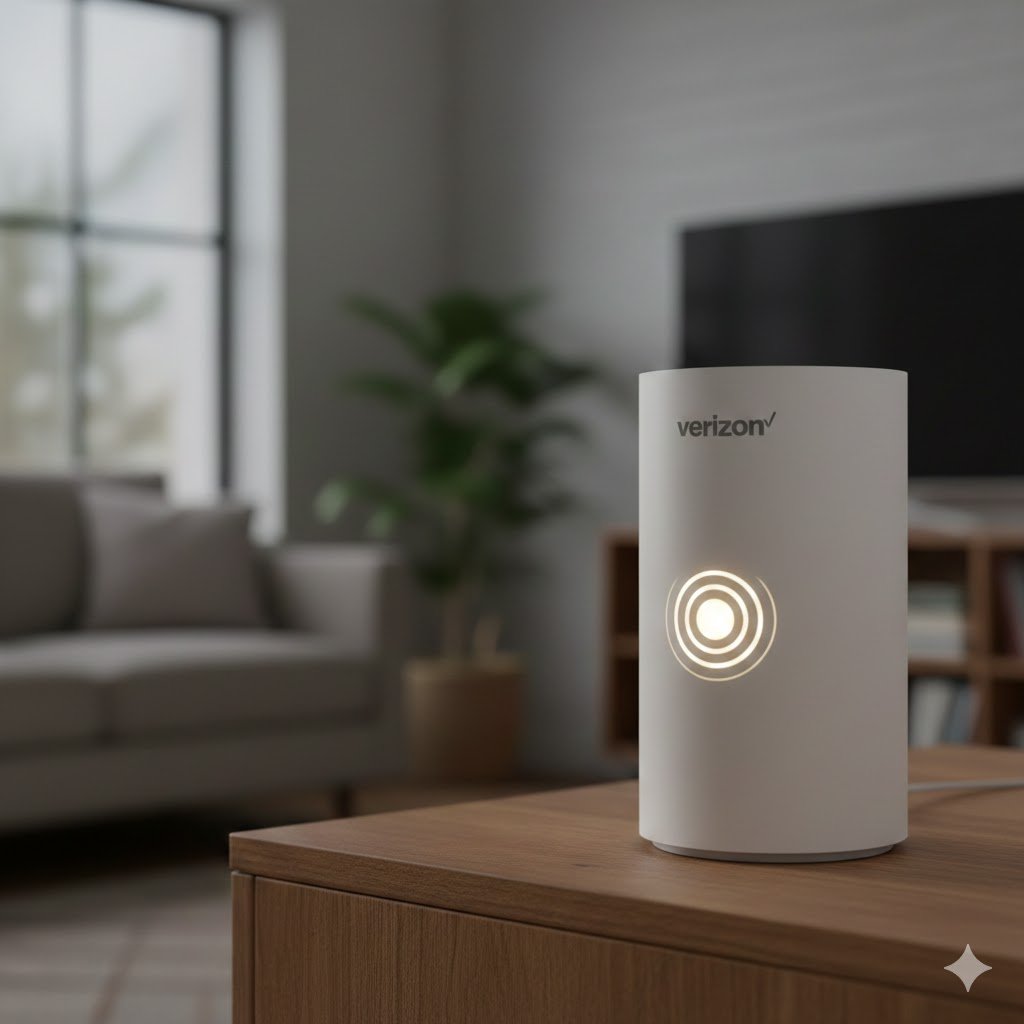
When your Verizon router blinking white, most users get confused and would be unable to tell whether it is a harmless signal or a major issue. This article will teach you all you need to know, such as what the blinking white light is, what are the most common causes, what to do in troubleshooting, and when to call Verizon.
LED Lights Matter on Routers:
The router has LED lights that are not there for decoration but to assist in diagnosis. Every color and blinking pattern provides the information on the state of your device: Normal operation has been marked by solid lights. Connection attempts, errors, or firmware activity can be represented by the blinking lights.
Status conditions such as online connectivity, connectivity problems or alerts, are usually associated with color changes (green, white, blue, red). Verizon routers (such as the Fios Gateway line) can show the blinking white light as an indicator of a certain startup or connection or firmware process, though it can be a sign of failure, too. Learning the Verizon Router LED System.
Understanding the Verizon Router LED System
Before we dive into the white blinking light, it’s helpful to know what the major LED colors generally mean on Verizon routers:
| Light Color | Common Meaning |
|---|---|
| Solid White | Router is on and functioning normally |
| Blinking White | Router trying to connect, starting up, or updating |
| Solid Blue | Connected to internet / good signal |
| Blinking Blue | WPS pairing in progress |
| Red | Error state or no internet connection |
| Off | No power or device is off |
While LED behavior can vary slightly between Verizon models, most use these conventions.
What “Blinking White” Typically Means
A blinking white LED on a Verizon router generally indicates one of the following:
a) Firmware Update in Progress
In instances where the router is starting or installing a firmware update, it may flicker white as long as the process is completed.
b) Attempting to make an Internet Connection
The LED can be flashing white when the router is trying to be connected to the internet as it is negotiating with the Verizon network.
c) Network Sync Process
For Fios devices, there may be a synchronization phase between the router and the optical network terminal (ONT), which also shows as blinking white.
d) Router Restart Triggered by Settings Change
If you’ve recently changed network settings — such as Wi-Fi name/password, security options, or advanced configurations — the router may restart and blink white during the process.
When Blinking White Is Normal:
A blinking white light isn’t always a problem. In the following situations, it’s expected behavior:
During Initial Setup
If you just plugged in your Verizon router for the first time, blinking white is completely normal as it launches and registers on the network.
After a Firmware Update
The updates in the firmware usually need a reboot. During the process of updating the device, you may observe flashing lights until it is done.
Temporary Network Changes
When your ISP is updating or changing settings on their side the router should blink white in reconfiguring it. Should the white blinking come to a stop after a couple of seconds and change to solid white or solid blue, it is possible that your router has gone through all these regular activities and is operating properly.
When Blinking White Might Be an Indication of a Problem:
Nevertheless, a continuous or long time blinking white LED may be indicative of a problem. The following are the typical situations that can necessitate troubleshooting:
a) Verizon Network Router Failure
The router may not be connecting, so it may be a good idea to change the switch-over to a solid light after it keeps blinking white without changing to a solid light.
b) Firmware or Boot Loop Error
In case a firmware update fails, the router may get stuck in a restart cycle and may keep on blinking white and reusing.
c) Low Signal Router
In the case of fiber installations, the lack of connection between the ONT and the router or its weakness can cause the not to sync the network and result in never-ending white blinking.
d) Hardware Issue
Internal hardware crash – such as a broken power supply, broken ports, broken board, etc. – may not boot up normally.
Step-by-Step process for Maintenance:
This is how you can be blinking white to a stable internet connection:
Step 1: Patient Waiting (Up to 10 minutes)
The firmware update can take some minutes, and the light will remain white.
Note: Do not pull the plug of the router at once, the process of updating the firmware will lead to problems, especially when interrupted.
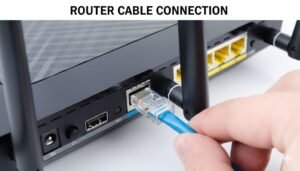
Step 2: Check Power and Connections.
- Ensure the following: Power adapter is firmly fixed.
- The socket is alive (read another socket in case it is in doubt).
- Cables are either Ethernet or fiber, and they are connected accordingly.
- There are no loose, frayed or damaged cables. The most common cause is the loose connections.
Step 3: Power Cycle the Router
Many of the temporary errors can be fixed with power cycling.
-
Turn off the router.
-
Unlock the power wire from switch.
-
Hold at least 30 to 60 seconds for restart.
-
Press it again and turn it on after 60 seconds.
Step 4: Check Verizon Service Status
There are occasions when your internet can be off in your neighborhood because it is undergoing maintenance or it is not functioning. Check on the My Verizon app or the Verizon service status page.
Step 5: Review Recent Changes
In case you just changed router configurations, then undo them as much as possible. Inappropriate settings may block the connection attempts.
Step 6: Factory Reset
In case all other attempts prove in vain, and the router continues to blink white:
- Find the reset button and press it (hole on the back mostly).
- Hold the button and press it some 10 to15 seconds for start.
Advanced Tips for future use:
If basic steps don’t fix the problem, consider these:
Replace Damaged Cables
Even if cables look fine, internal damage can cause several times connectivity problems. Swapping with a known good cable might help to speed up problem.
Try a Different Power Adapter
Using a weak or incorrect power adapter can cause startup issues. If you have a compatible spare, test it.
Contact Support:
-
The light never stops blinking or switches to red.
-
You suspect your router is defective.
-
Firmware appears corrupted.
-
You’re unable to reconnect after a reset.
-
You don’t see a proper link between your ONT and router.
When contacting Verizon, be ready to provide:
-
Your router model.
-
The exact LED behavior (white blinking pattern).
-
What troubleshooting steps you’ve already tried.
-
Any recent changes to network setup.
Support may remotely diagnose, reset your connection, or dispatch a technician.
Preventing Router Issues in the Future
Here are tips to reduce chances of LED errors like persistent blinking:
Keep Firmware Updated
Ensure your router firmware always up to date. Most Verizon gateways update automatically. Always confirm through the admin interface.
Use a Stable Power Source for maintenance
Avoid frequent power interruptions and surges. A UPS (uninterruptible power supply) can help during outages.
Avoid Overheating
Place the router in a well-ventilated area . Overheating can cause hardware instability.
Maintain Proper Cable Management
Make sure cables aren’t twisted, bent, or exposed to strain. Secure connections help maintain stable operation.
Conclusion:
A Verizon router blinking white can be:
-
Normal (startup, firmware updates, connection attempt)
-
Temporary (lasting minutes, then stabilizing)
-
Troublesome (persistent blinking indicating network or hardware issues)
With the knowledge of what that blinking white light indicates and with systematic troubleshooting, such as verifying cable connections to power cycling and initiating resets can get you through the problem on your own. However, when the issue is still there, contacting Verizon support will guarantee an adequate diagnosis or a replacement of equipment.
